


The loading speed of any website on the Internet depends, among other things, on the amount of data the server sends to the browser. Fortunately, the main protocols for transmitting data over the Internet - such as HTML, CSS, JavaScript, JSON, and other text-based data - compress well. For example, a 200 KB file can take up several times less space after compression. And of course, it would be foolish not to take advantage of this, which is why all modern web servers use one form or another of traffic compression. But today we’ll discuss how this specific mechanism is implemented in one of today’s most popular web servers, Nginx.
In Nginx, gzip and Brotli are the most commonly used compression mechanisms. Gzip is already built into Nginx and is supported by virtually every modern browser. The Brotli mechanism typically compresses text slightly more efficiently, but it requires the installation of a separate module. Both of these tools can be used simultaneously; for example, in this case, the browser informs the server which algorithm it supports, and the server selects the appropriate one and continues processing using the chosen method.
In this article, let’s take a closer look at how to configure both compression options, immediately verify the results, and ensure that traffic savings don’t turn into an unnecessary load on the server’s CPU. Let’s start with the very basics.
How Compression Works in Nginx
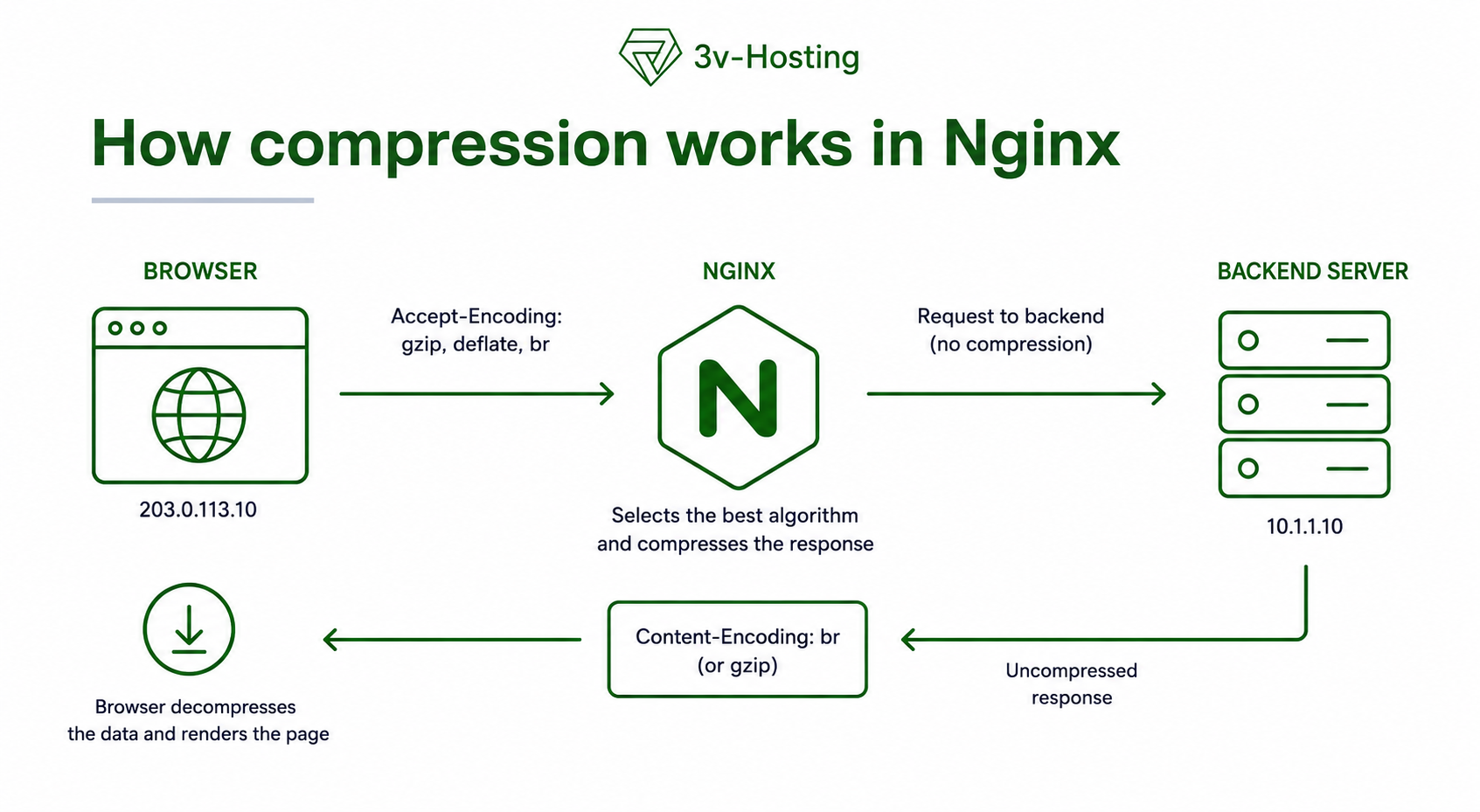
When a browser requests a page, it tells the server which compression algorithms it supports. There is a special header for this, Accept-Encoding, which conveys the following information:
Accept-Encoding: gzip, deflate, br
Nginx selects an available option and specifies it in the response in the corresponding field:
Content-Encoding: br
The browser receives the compressed data and decompresses it on its own. For the end application, nothing changes with this mechanism; the same WordPress, Django, Laravel, or other backend continues to serve regular HTML or JSON.
Data can be compressed in two ways: dynamically and statically. With dynamic compression, Nginx processes the response before each send to the client; this is the standard approach for simple HTML and other variable data. Static CSS and JavaScript files, however, can be compressed in advance, and the compressed copies can be stored in various formats alongside the originals, with Nginx serving whichever format the browser supports:
app.js
app.js.gz
app.js.br
In this case, Nginx serves the pre-compressed file directly and does not waste CPU resources on recompression. This approach is useful for websites and applications where static resources change extremely rarely - for example, only when the project is updated.
What is gzip
Gzip is a compression algorithm built into Nginx that is widely supported by browsers and other HTTP clients. It works well for HTML, CSS, JavaScript, JSON, XML, and other text-based data.
For most servers, gzip can be considered the basic, standard option, since it does not require the installation of additional modules and, at a moderate compression level, places a light load on the CPU.
What Is Brotli
Brotli is a newer algorithm that typically compresses text content more effectively than gzip. The difference is particularly noticeable with large CSS and JavaScript files.
However, Brotli is not usually included in the standard Nginx build and requires the ngx_brotlimodule, so you should first check if it’s available, as we’ll discuss below.
As we mentioned above, gzip and Brotli can be enabled simultaneously. In this case, if the client supports Brotli, the server can use it; otherwise, gzip is used.
| gzip | Brotli | |
|---|---|---|
| Nginx support | Built-in | Requires a module |
| Compatibility | Very broad | Broad in modern browsers |
| Compression ratio | Good | Usually higher |
| Dynamic compression | Yes | Yes |
| Pre-compression | .gz |
.br |
However, it’s worth noting that for dynamic responses, there isn’t much point in chasing the maximum compression level. For gzip and Brotli, a reasonable starting point is usually in the range of 4-6. Higher compression levels are more beneficial for pre-generated static content, where CPU resources are expended only once during file creation. However, cranking the compression level all the way up for everything would be impractical, since the traffic savings would increase more slowly than the CPU load.
Which Files Should Not Be Compressed with gzip and Brotli
Let’s reiterate that compression makes the most sense for text-based formats. HTML, CSS, JavaScript, JSON, XML, SVG, and TXT typically compress very well, often by several times their original size.
As for JPEG, PNG, WebP, AVIF, videos, and archives, they already use their own compression, so re-compressing them rarely noticeably reduces their size but does consume CPU time. The same applies to PDFs, which generally don’t need to be specifically run through gzip or Brotli.
It follows, then, that you shouldn’t add all available MIME types one by one to the gzip_types and brotli_types directives.
Configuring Compression in Nginx
Configuring gzip
As you know, gzip is already built into Nginx, so it’s usually enough to add a few directives to the http block of the /etc/nginx/nginx.conf file to enable it. A sample configuration might look like this:
gzip on;
gzip_vary on;
gzip_comp_level 5;
gzip_min_length 1024;

gzip_types
    text/plain
    text/css
    text/xml
    application/javascript
    application/json
    application/xml
    application/rss+xml
    image/svg+xml;
gzip_comp_level 5- For production, this compression level will be quite sufficient, as we discussed above;gzip_min_length 1024- this filters out responses that are too small, where compression offers almost no benefit;- There’s no need to add HTML separately to
gzip_types: Nginx compressestext/htmlby default.
If static files are already compressed in advance, you can allow Nginx to serve the pre-compressed .gz archives:
gzip_static on;
This is useful for CSS and JavaScript, which only change when the project is updated.
Configuring Brotli
When it comes to Brotli, you first need to make sure the required module is available. To do this, run the following command:
nginx -V 2>&1 | grep -i brotli
If the command returns nothing, then the module needs to be installed. On Ubuntu and Debian, when using Nginx from the system repositories, Brotli is available as separate packages. The filter package handles dynamic compression, while the static package handles serving pre-compressed .br files.
You can install both as follows:
sudo apt update
sudo apt install libnginx-mod-http-brotli-filter libnginx-mod-http-brotli-static
After installation, check the configuration and restart Nginx:
sudo nginx -t
sudo systemctl reload nginx
If Nginx was installed from a third-party repository or built manually, the system packages may not be compatible with its ABI (Application Binary Interface). In this case, you’ll need to install the Brotli module using the method specified for that particular Nginx build, or build it alongside Nginx.
Once the module is enabled, its configuration is similar to that of gzip:
brotli on;
brotli_comp_level 5;
brotli_min_length 1024;

brotli_types
    text/plain
    text/css
    text/xml
    application/javascript
    application/json
    application/xml
    application/rss+xml
    image/svg+xml;
For pre-built .br files, use:
brotli_static on;
If the project is built via CI/CD, it’s convenient to generate .gz and .br files directly during the build phase.
Checking if compression works
After changing the configuration, first check the syntax:
nginx -t
If there are no errors, apply the changes:
systemctl reload nginx
Now let’s check gzip:
curl -I -H "Accept-Encoding: gzip" https://example.com/
The response should include the following header:
Content-Encoding: gzip
For Brotli:
curl -I -H "Accept-Encoding: br" https://example.com/
Expected result:
Content-Encoding: br
It’s best to check not only HTML but also CSS and JavaScript, because if the homepage is compressed but app.js remains without a Content-Encoding header, the problem may lie in the MIME type or the gzip_types / brotli_types list.
You can check all of this in the browser as well: DevTools → Network → the desired request → Response Headers.
Measuring Actual Compression Efficiency
The Content-Encoding header itself only indicates that compression is working, but it doesn’t show how much it reduced the response size.
For this purpose, Nginx has a special variable for gzip:
$gzip_ratio
The ngx_brotli directive has its equivalent:
$brotli_ratio
You can add these variables to the access log and monitor the compression ratio based on actual traffic. This is a more accurate approach than blindly setting the maximum compression level.
It’s better to test the compression ratio with different compression level settings, and if increasing comp_levelbarely reduces the response size, then the additional CPU load makes no sense.
Troubleshooting: Why gzip or Brotli Isn’t Working
If Content-Encodingis missing from the response, the reason is usually quite simple. Let’s list the main ones.
The response is too small
With the following configuration:
gzip_min_length 1024;
brotli_min_length 1024;
Nginx will not compress responses smaller than 1 KB. To test this, it’s best to use a large HTML, CSS, or JavaScript file.
The MIME type isn’t specified in the configuration
If the required type isn’t listed in gzip_types or brotli_types, the resource will remain uncompressed.
You can check the response type as follows:
curl -I https://example.com/app.js
Look for the Content-Type header and compare it with the Nginx configuration.
Brotli is not enabled
The directives brotli on; and brotli_types only work if the module is present.
Check:
nginx -V 2>&1 | grep -i brotli
If there is no output, the current Nginx build was most likely compiled without Brotli.
Nginx is running with an old configuration
After making changes, you need to check the config and reload it:
nginx -t
systemctl reload nginx
Without a reload, the worker processes will continue to run with the old settings.
There’s a CDN between Nginx and the user
A CDN or external reverse proxy may compress responses itself, change the Accept-Encoding, or serve a cached version of the file.
In this case, it makes sense to check the actual public response received by the browser and, if necessary, make a separate request to the origin server. Otherwise, it’s easy to mistakenly attribute the problem to Nginx when compression has already been handled by an intermediate layer.
When Compression Is Useless or Starts to Get in the Way
Compression saves bandwidth at the cost of CPU time. When the load is low, this is almost imperceptible, but on a server with a large number of dynamic requests, the difference can already be noticeable.
The use of maximum compression levels is particularly controversial. For example, if Brotli level 5 reduces the response to 42 KB and level 11 to 39 KB, then a few kilobytes of savings can come at a disproportionately high CPU cost.
On a small VPS, this will be more noticeable, since the CPU is simultaneously needed by the application, the database, PHP-FPM, and Nginx itself. Therefore, for dynamic compression, it’s usually wiser to stay around levels 4–6 and monitor the actual load.
With static files, things are much simpler. CSS and JavaScript can be pre-compressed into .gz and .br, and Nginx will simply serve the pre-compressed files.
There’s another rare but real consideration. Compressing HTTPS responses can contribute to BREACH-class attacks if a single response contains both confidential data and content that the user can control. This isn’t an issue for standard static content, but pages containing tokens and other sensitive values require a separate assessment.
FAQ
Which is better for Nginx: gzip or Brotli?
Brotli generally compresses text slightly more efficiently. However, gzip is simpler and is already built into Nginx. In practice, they are often enabled and used simultaneously.
Can gzip and Brotli be used together?
Yes. The browser specifies the supported algorithms via Accept-Encoding, and Nginx selects the appropriate option for the response.
What gzip_comp_level should you set?
For most websites, 4-6 is sufficient. A value of 5 can be used as a starting point.
What brotli_comp_level should you choose?
For dynamic compression, it’s also wise to start with 4–6. Higher levels are better suited for pre-generated static content.
Why doesn’t gzip compress CSS or JavaScript?
Check the Content-Type, the gzip_types list, the gzip_min_length value, and don’t forget to reload the Nginx configuration after making changes.
Should images be compressed?
Usually not. JPEG, PNG, WebP, and AVIF already use their own compression, so additional gzip or Brotli compression won’t make much of a difference.
Can Brotli be used on a small VPS?
Yes, it can. What matters more here isn’t the amount of RAM, but the available CPU and current load. The maximum levels of dynamic Brotli compression aren’t usually necessary on a small VPS.
Conclusions
Configuring gzip and Brotli rarely speeds up a slow website on its own - after all, if the application takes three seconds to generate a page, no compressor will fix that problem.
But where compression works brilliantly is on virtually all of a site’s text-based traffic. As a result, HTML files become smaller, CSS files become smaller, and JavaScript and JSON files become smaller, so users have to download less data, and the server has to transfer significantly less traffic.
For most Nginx configurations, a sensible approach is quite simple: keep gzip as the compatible fallback option, but add Brotli for clients that support it; avoid pushing dynamic compression to its maximum levels; and, whenever possible, use pre-generated .gz and .br files for large static resources.