
The address in the browser may not always match the actual location of the website. For example, a company may host its online store on a third-party platform while still providing customers with its own domain - the one they’re used to. Or, for instance, a developer may need to show a client an application that’s running on a temporary server with a long technical address.
For such cases, there is domain masking, which allows the content of one web resource to be displayed under the address of another, while keeping the selected domain in the browser’s address bar.
At first glance, it may seem simple: a user opens mycompany.com and sees an application that is actually running on app.example.net.
However, the implementation can be more complicated than it seems, since some masking methods can interfere with authentication, cause indexing issues, or disrupt internal links. And attempting to hide the server’s actual IP address requires a separate approach altogether, which we’ll discuss in a separate article.
So, in this article, let’s explore how URL masking works, which technologies are suitable for this purpose, and which method to choose for a specific task.
How Domain Masking Works
Let’s say a company has the domain mycompany.com, and its application is hosted at app.example.net. If you set up a standard HTTP redirect, the browser will go to the domain specified there, app.example.net, and the visitor will see the new address.
With domain masking, however, the address bar remains the same - mycompany.com - even though the content may actually come from a different server.
There are several ways to implement this setup:
- HTML iframe - an external site loads within a page hosted on the main domain;
- Reverse Proxy - the server receives visitor requests and independently contacts the source application;
- Custom Domain - an external platform hosts the application directly under the client’s domain.
The last option is technically different from classic masking, but it often solves the same problem at a lower cost.
However, it’s important to remember that saving the address in the browser doesn’t necessarily mean the original domain is now undetectable - if that was your goal. It can still be revealed through the page’s source code, network requests, HTTP headers, or the application’s own settings.
Can You Hide a URL Using DNS?
Sometimes website owners try to mask a domain using a single DNS record. To do this, for example, they create a CNAME record and expect the browser to start displaying the content of another website under their domain.
But, for better or worse, DNS doesn’t work that way - its purpose is to determine where to send a network request. For example, an A record links a domain to an IPv4 address:
mycompany.com. IN A 192.0.2.10
A CNAME record, on the other hand, creates an alias for another domain name:
app.mycompany.com. IN CNAME service.example.net.
In the second case, the DNS client uses the service.example.net records to determine the IP address for the connection. But the browser continues to access app.mycompany.com.
Now the request must be processed by the web server. If it is configured exclusively for service.example.net, the visitor may receive a TLS certificate error, a page from a different virtual host, or even a service denial.
That’s why many SaaS platforms offer a Custom Domain feature, where the user adds a DNS record, verifies domain ownership, and the platform configures request handling and HTTPS.
It turns out that DNS helps route the request to the correct server, but it cannot mask the URL on its own.
Masking a URL Using an HTML iframe
One of the simplest ways to preserve the address in the browser is to embed an external site using the HTML iframe element.
Suppose that at mycompany.com there is a page with the following code:
<!DOCTYPE html>
<html lang="ru">
<head>
    <meta charset="UTF-8">
    <title>My Company</title>
</head>
<body style="margin:0">    <iframe
        src="https://app.example.net"
        title="My Company Application"
        style="width:100%;height:100vh;border:0">
    </iframe>
</body>
</html>
As a result, when a visitor opens mycompany.com, the browser loads the content of app.example.net inside the page.
This method is convenient for small demo projects, but complications may arise with full-fledged websites.
Why an iframe might not work
Many websites prohibit embedding their pages on third-party domains. To do this, they use the X-Frame-Options HTTP header and the frame-ancestors directive of the Content Security Policy (CSP).
For example:
X-Frame-Options: DENY
Or:
Content-Security-Policy: frame-ancestors ‘none’;
Both options prevent the page from being displayed inside an iframe.
If the external server returns such headers, you won’t be able to resolve the issue by adjusting the settings of the parent HTML page. The restriction is set on the content source’s side.
Issues with Cookies and Authentication
Suppose a visitor opens mycompany.com and attempts to log in to an application loaded from app.example.net. In this case, the application sets a session cookie. However, the browser treats this as a third-party resource because the iframe is located on a different website.
And modern browsers restrict the use of third-party cookies. As a result, authorization may succeed, but the app will lose the session on the next request.
Sometimes developers try to fix this with the following header:
Set-Cookie: session=abc123; Secure; HttpOnly; SameSite=None
where SameSite=None allows the cookie to be shared across sites, and Secure requires a secure connection. However, the browser’s restrictions on third-party cookies remain in effect.
There is also the Same-Origin Policy. JavaScript on the parent page does not have unrestricted access to the content of an iframe loaded from a different origin.
postMessage() is used for permitted communication between pages.
Finally, search engines may index the content of an iframe separately from the parent page, and for a site that relies on search traffic, this is a significant drawback.
However, where the use of iframes is truly appropriate is for embedded widgets, demo pages, and individual interface components. Nevertheless, as we’ve already seen above, for a full-fledged online store or an application with a user dashboard, it’s better to look for another solution.
Domain Masking via a Reverse Proxy
There is another tool suitable for domain masking - a reverse proxy server - which allows you to host an application under your own domain without resorting to HTML frames.
Here’s how it works: the browser sends a request to mycompany.com, the proxy contacts app.example.net, receives a response, and returns it to the visitor.
A simplified diagram of how a reverse proxy works is shown below.
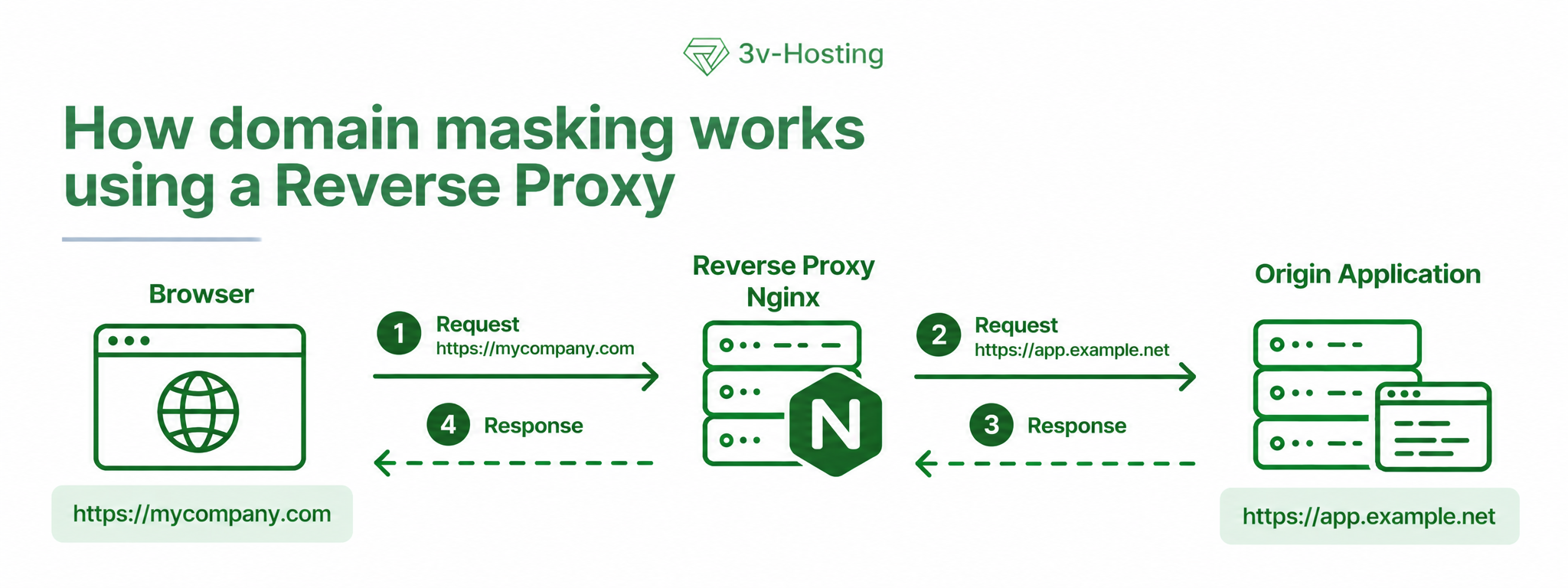
As a result, the browser interacts with the public domain, while the proxy server handles requests to the original application. When configured correctly, the user interacts with the application via mycompany.com, and all necessary requests pass through the proxy, so the original server’s address does not appear in the browser.
However, the proxy must be configured correctly, as it needs to properly handle headers, cookies, redirects, and the specific features of the application itself. Otherwise, while the home page will load, authentication or clicking on links will not work correctly.
This approach is often used for web applications, enterprise services, and projects that run on multiple servers.
Configuring Domain Masking via Nginx
Let’s look at a real-world example of how to set up a simple proxy on one of the most popular web servers, Nginx.
Suppose that the DNS record mycompany.com points to a server running Nginx, and the source application itself is accessible via HTTPS at app.example.net. In that case, the basic virtual host configuration would look something like this:
server {
listen 443 ssl;
server_name mycompany.com;
ssl_certificate /etc/ssl/site.crt;
ssl_certificate_key /etc/ssl/site.key;
location / {
proxy_pass https://app.example.net;
proxy_ssl_server_name on;
proxy_ssl_verify on;
proxy_ssl_trusted_certificate
/etc/ssl/certs/ca-certificates.crt;
proxy_set_header Host app.example.net;
proxy_set_header X-Real-IP $remote_addr;
proxy_set_header X-Forwarded-For
$proxy_add_x_forwarded_for;
proxy_set_header X-Forwarded-Proto $scheme;
}
}
Note that here the proxy_pass directive specifies the address of the origin application; that is, Nginx accepts visitor requests and forwards them to that address.
The proxy_ssl_server_name on directive enables SNI for HTTPS connections to the upstream server, `proxy_ssl_verify on` enables certificate verification, and `proxy_ssl_trusted_certificate` specifies trusted certificate authorities.
Also keep in mind that the specified path to the CA certificates is specific to Debian and Ubuntu, but may differ in other distributions.
Also note the following line:
proxy_set_header Host app.example.net;
In this example, the application is assigned its own domain name, since it is assumed to be configured to serve app.example.net.
However, if the application supports operation under a public domain, the final configuration may differ. For example, it may require the original Host and proper handling of X-Forwarded-* headers.
Note that this is a basic configuration, which assumes the presence of a valid TLS certificate for mycompany.com and an accessible upstream server with proper HTTPS.
Testing Nginx
After configuring the proxy, you need to test it. First, check the syntax of the Nginx configuration with the command:
sudo nginx -t
If there are no errors, apply the configuration changes with the command:
sudo systemctl reload nginx
Now check the server’s response:
curl -I https://mycompany.com
Pay special attention to the Location header. For example, the application might return:
HTTP/1.1 302 Found
Location: https://app.example.net/login
In this case, the browser will redirect to the original domain, and the visible address will change.
This can be fixed through the application’s own settings or using the proxy_redirect directive in the Nginx configuration. The first option is usually more reliable, since the application should generate public URLs correctly.
A similar problem arises with cookies. For example, if the upstream server sends the following string:
Set-Cookie: session=abc123; Domain=app.example.net; Path=/
, then a browser that has opened mycompany.com will not be able to accept such a cookie for a different domain.
The good news is that Nginx allows you to rewrite the domain attribute using the following directive:
proxy_cookie_domain app.example.net mycompany.com;
However, before applying this, you’ll need to check how the application uses cookies and whether other authorization mechanisms depend on the original domain.
WebSocket connections may require separate configuration, since Nginx must correctly forward the HTTP Upgrade request and the corresponding headers for them.
And here’s another small detail that could nevertheless turn into a problem: absolute URLs within HTML, CSS, and JavaScript. For example, if the application continues to reference app.example.net, some resources may be loaded directly from the original domain.
Nginx can proxy requests, but it does not automatically correct all of the application’s internal logic - something you must always keep in mind.
How Domain Masking Differs from Redirection
URL masking is often confused with standard redirection (Domain Forwarding), since at first glance the mechanisms do indeed look similar, which can mislead novice administrators. So let’s take a moment to examine this aspect and try to understand the difference between these two mechanisms.
So, with an HTTP redirect, the server immediately notifies the browser of the resource’s new address. The browser then immediately navigates to the new resource and updates the address bar.
For example:
HTTP/1.1 301 Moved Permanently
Location: https://newdomain.com/
After receiving this response, the user will be redirected to newdomain.com.
With masking, however, the content remains accessible at the original address, and this is achieved - as we mentioned above - through an iframe, a reverse proxy, or by directly linking the domain to the platform.
The difference becomes clear when the data is compiled into a comparison table:
|
Technology |
URL Remains Unchanged |
SEO Considerations |
Complexity |
|---|---|---|---|
|
HTML iframe |
Yes |
Limited content indexing |
Low |
|
Reverse Proxy |
Yes |
Depends on configuration |
Medium |
|
HTTP 301/302 |
No |
Suitable for page redirects and migrations |
Low |
|
Custom Domain |
Yes |
Generally preferred |
Low to medium |
Why URL Masking Is Used
Now that we’ve covered the mechanism of domain masking itself, let’s look at the reasons behind it - which are usually quite practical. It’s simple: companies want to show customers easy-to-understand URLs, while developers want to separate the public interface from the internal infrastructure.
For example, a booking service runs on a third-party SaaS platform, but the company wants customers to access it via its own domain.
Or take another scenario - a test application. The developer hosts it on a temporary server but provides the client with a short URL that can be retained even after the project is migrated.
But there’s an even more interesting scenario.
One Domain for Multiple Applications
Suppose a company uses separate servers for CRM, billing, and customer support.
Original addresses:
crm.example.net
billing.example.net
support.example.net
Using a reverse proxy, you can organize access to all these services through a single domain:
mycompany.com/crm/
mycompany.com/billing/
mycompany.com/support/
In this case, the visitor interacts with a single system and a single domain, even though the applications may be located on different servers.
However, not all applications support placement in subdirectories, since some of them use absolute paths from the site root /, generate their own redirects, or require a specific base URL. In such cases, it’s still more convenient to use subdomains.
How Domain Masking Affects SEO
It’s also worth discussing the impact that domain masking has on your project’s SEO, since the implementation method is crucial for search engine optimization.
The most problematic option is obviously the iframe. Search engines are, of course, capable of detecting the content of frames, but there’s no guarantee that they’ll index this text as part of the parent page.
In the case of a reverse proxy, the situation is slightly different. The search bot receives a complete HTML document under the public domain and can index it in the usual way, but this raises the issue of duplication, since if the same page is accessible at the following addresses:
https://mycompany.com/products/
https://app.example.net/products/
, the search engine may detect two versions of the same content.
In this case, a canonical URL is used to manage indexing.
Configuring the canonical tag when masking
If mycompany.comis selected as the primary address, then the following can be specified on the page:
<link rel="canonical" href="https://mycompany.com/products/">
This tag informs search engines of the preferred page address.
However, it’s important to remember that canonical is merely a recommendation, so Google may independently choose a different URL if other signals point to it.
Therefore, in the context of SEO, when configuring a reverse proxy, it’s important to check several points:
- Internal links. Navigation should lead to the public domain and not redirect visitors back to the application’s technical address;
- Presence of a sitemap.xml. The sitemap must contain URLs intended for indexing;
- Presence of a robots.txt file and meta robots tags. Ensure that the necessary pages are accessible for crawling and are not accidentally blocked via
noindex. - Duplicate pages. If the source domain remains public, you’ll need to configure canonical tags, redirects, or other methods to manage the indexed versions;
- HTTP status codes. The proxy must correctly return
404,301,503, and other status codes.
This last point is often overlooked, and for good reason: for example, if a nonexistent page returns a 200 OK code via the proxy, the search engine may treat it as a regular document. In such cases, "Soft 404" errors occur.
After configuration, it’s a good idea to check a few pages of your site using Google Search Console. The URL Inspection tool will show whether the page is available for indexing and which canonical URL Google has selected.
In conclusion, domain masking alone does not improve a site’s rankings, since page content, accessibility, and the accuracy of technical signals are more important for SEO.
Why Domain Masking Doesn’t Work: Troubleshooting.
Sometimes the homepage loads normally, but after logging in, the user loses their session. Or, for example, images fail to load, even though the HTML renders without issues.
Below, we’ve listed the most common causes of such issues, summarized in a table for clarity.
To diagnose all these issues, it’s helpful to use the browser’s developer tools. The Network tab shows requests, HTTP status codes, redirects, and cookies. The Console tab typically displays JavaScript, CSP, and CORS errors.
You can also monitor the Nginx web server’s logs using the following command:
sudo tail -n 50 /var/log/nginx/error.log
To check the redirect chain, you can use this command:
curl -IL https://mycompany.com
Here, the -L option allows you to follow redirects, while -I requests headers via a HEAD request. However, some applications handle HEAD and GET requests differently, so if in doubt, it’s best to check with a regular GET request.
If the application constantly redirects the visitor back to the original domain, the problem may lie in its configuration. And attempts to fix everything using only Nginx sometimes lead to an even more convoluted configuration.
|
Problem |
Possible Cause |
What to Check |
|---|---|---|
|
iframe is not displayed |
CSP or X-Frame-Options |
Source server's HTTP headers |
|
Session expires after login |
Cookies, SameSite |
Set-Cookie, authentication settings |
|
Redirect to an external domain |
Absolute URLs, Location header |
Application redirects |
|
CSS and JS fail to load |
Paths, CSP, CORS |
Network and Console tabs |
|
WebSocket connection fails |
Upgrade not configured |
Nginx configuration |
|
502 Bad Gateway error |
Upstream server unavailable |
Network, TLS, Nginx logs |
|
HTTPS certificate error |
Invalid certificate or SNI |
TLS configuration |
When Domain Masking Isn’t Necessary
URL masking isn’t suitable for every task. Sometimes website owners try to keep the address in the browser when a simple redirect or mapping their own domain would suffice.
For example, when moving a site from one domain to another, there’s no point in keeping the old address in the browser. It’s much easier to set up a permanent 301 redirect. Visitors will automatically be taken to the new site, and search engines will receive a signal that the pages have been moved.
With applications on SaaS platforms, the situation is slightly different. Many services already support the Custom Domain feature, which allows you to connect your own domain name via DNS. In this case, you won’t need to set up a proxy server or use HTML frames.
If a company uses multiple applications on different servers and wants to consolidate them under a single domain, a standard reverse proxy will come in handy. For example, Nginx can route requests to the desired application based on the subdomain or the path in the URL.
For small embedded components, an iframeis sometimes sufficient. But only if the external service allows such embedding and its functionality works properly within the frame.
There’s another point to consider: not all third-party platforms allow their content to be proxied. Restrictions may be specified in the service’s terms of use or implemented technically.
Therefore, before setting up masking, it’s worth checking what capabilities the source platform already provides. It may be possible to achieve the desired result without additional servers, complex configurations, or potential SEO issues.
To summarize, the choice of method depends on the specific task. Sometimes you simply need to remove a long technical URL from the address bar. In other cases, you need to prevent direct access to the origin server or bundle multiple applications under a single public address.
And the more precisely the task is defined, the fewer unnecessary components there will be in the infrastructure.
FAQ: Frequently Asked Questions About Domain Masking
Is it possible to completely hide a website’s actual URL?
This cannot be guaranteed. When using an iframe, the original address is usually visible in the browser’s network requests. A reverse proxy allows you to hide the browser’s direct requests to the upstream server, but information about the original domain may still be stored elsewhere.
Does domain masking harm SEO?
It all depends on the technology you choose. An iframe imposes limitations on the indexing of content under the parent domain. A reverse proxy allows search engine crawlers to retrieve full HTML, but requires proper configuration of canonical tags, links, and management of duplicate pages.
Can you use a CNAME record to mask a URL?
A single CNAME record isn’t enough for this. It helps determine the server address, but it doesn’t change the URL in the browser or configure the web server to serve the new domain. This requires Custom Domain support or the appropriate server configuration.
How does Domain Masking differ from Domain Forwarding?
Domain Masking typically means preserving the visible address while loading content from another source. Domain Forwarding is more commonly used to redirect visitors to a different URL. These terms are sometimes used interchangeably by domain registrars, so it’s best to verify how the service actually works.