

Contrary to the usual style of articles on our blog, this one is written in the format of a short, concise guide, since the issue it addresses is resolved through specific steps and doesn’t require lengthy reflection on the history or philosophy of the topic - as we usually like to do :)
We’ll just emphasize that this guide is intended primarily for users of Debian and Ubuntu. Of course, the diagnostic commands df, du, find, and lsof work on most other Linux systems as well, but the apt commands are specific to Debian-like distributions, and working with journalctl is specific to systems running systemd.
So, the first thing to do if you see the message No space left on device is - DO NOT immediately start deleting files from /var. First, you need to do a little investigation to find out exactly what has used up the free space on this partition.
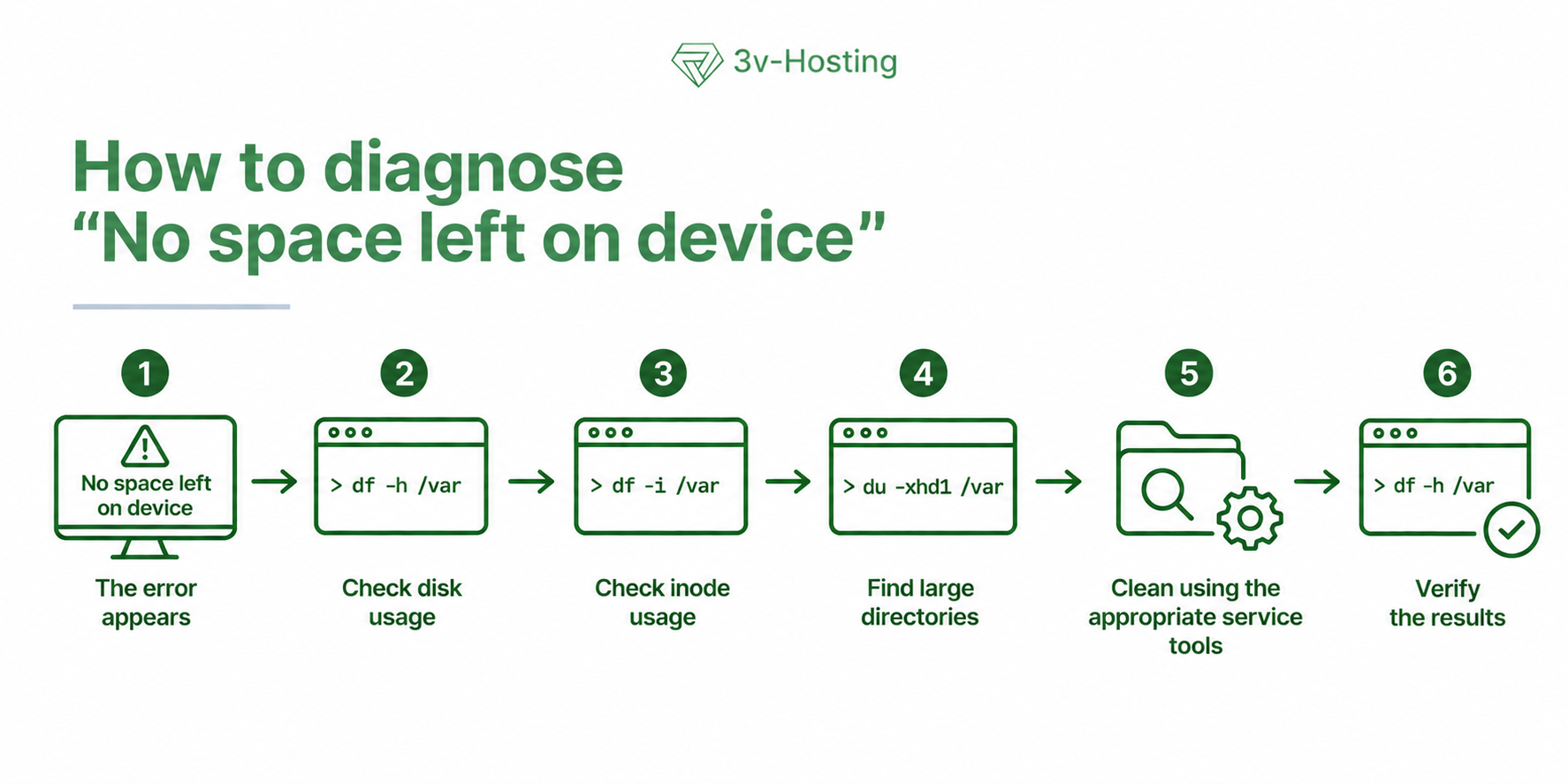
1. Check Free Space
First, check the actual usage of the partition to rule out false alerts:
df -h /var
If Use% is close to 100%, then the file system is indeed full.
While you’re at it, check the inodes:
df -i /var
and if IUse% has reached 100%, the problem is the number of files. This happens when there are millions of small session, cache, or temporary files.
2. Find the largest directory
sudo du -xhd1 /var | sort -h
For example:
120M    /var/cache
380M    /var/log
1.1G    /var/www
18G     /var/lib
20G     /var
In this case, we go to /var/lib and repeat the command for the large directory we found:
sudo du -xhd1 /var/lib | sort -h
Individual files larger than 500 MB can be found this way:
sudo find /var -xdev -type f -size +500M -exec ls -lh {} \;
3. If /var/log has grown too large
Check the sizes:
sudo du -h --max-depth=1 /var/log | sort -h
Search for the largest logs:
sudo find /var/log -type f -printf '%s %p\n' | sort -n | tail -20
It’s better to reset an active log rather than delete it, since not all services can generate logs on their own, and deleting it could cause some services to fail:
sudo truncate -s 0 /var/log/example.log
After that, check the reason for the growth of a specific log file, and also check the logrotate settings - or configure it if you haven’t already. If the application starts writing gigabytes of error logs again, it’s obvious that free space will soon run out again.
4. Check the systemd journal
Journal size:
sudo journalctl --disk-usage
Delete entries older than 14 days:
sudo journalctl --vacuum-time=14d
Or limit the current size:
sudo journalctl --rotate
sudo journalctl --vacuum-size=500M
You can set a permanent limit in the journald configurationin the /etc/systemd/journald.conf file:
[Journal]
SystemMaxUse=500M
5. If Docker is taking up space
First, check:
docker system df
If you need more details:
docker system df -v
Remove the standard set of unused objects:
docker system prune
Do not manually delete the contents of
/var/lib/docker/overlay2.
Be careful with docker system prune -a and especially --volumes as well, since Docker may consider a volume unused even though it still contains necessary data.
6. Clear the APT cache
Check:
sudo du -sh /var/cache/apt
And clear downloaded packages:
sudo apt clean
You can also check for unnecessary dependencies:
sudo apt autoremove
Before confirming autoremove, review the list of packages that will be removed.
7. If /var/lib is large
Check:
sudo du -xhd1 /var/lib | sort -h
Be careful here. The /var/libdirectory contains operational data for Docker, PostgreSQL, MySQL/MariaDB, and other services.
Warning! Never perform a complete cleanup of this directory!
If /var/lib/mysql or /var/lib/postgresqlis taking up a lot of space, investigate the cause using the database management system’s own tools. Do not manually delete files from a running database.
8. df and du show different sizes
A deleted file may continue to occupy disk space if it is kept open by a running process.
Check:
sudo lsof +L1
If a large deleted log file is found there, locate the process holding it and properly restart the corresponding service. Once the file descriptor is closed, the space will be freed up.
9. Check the result
df -h /var
df -i /var
Check for failed services:
systemctl --failed
Essentially, the troubleshooting process is quite simple:
And if you need a Linux VPS for testing or deploying your project, you know where to turn.