


Anyone who has run long-running commands on a remote server has, at least once, encountered this frustrating situation: the internet connection drops for a few seconds, the laptop goes into sleep mode, or the terminal window accidentally closes - and after reconnecting, you find that the process has been interrupted and several hours of work have been lost.
This can happen during backups, data transfers, system updates, large database imports, or project builds. And if the operation takes an hour or two, restarting it can be quite costly.
Of course, there are tools like nohup, systemd, and cron. And these tools are great for automating routine tasks. But when you need to view the program’s output, enter new commands from time to time, or switch between multiple tasks, it’s much more convenient to use the specialized utility tmux.
For most Linux administrators, DevOps engineers, and developers, this has long been a familiar tool that can be mastered in just a few minutes, but it will save you a lot of stress, effort, and time in the long run.
What Is tmux
tmux is a classic terminal multiplexer. In other words, it creates a separate terminal session that continues to run independently of the SSH connection.
Think of a regular SSH connection as a phone call. As long as the connection is active, everything works. But as soon as the connection drops, your call ends.
With tmux, however, your working session remains active on the server even if you disconnect, so you can return a few minutes later or the next day, and your terminal will be exactly as you left it. Essentially, SSH is used only to connect to an existing working environment, but all processes continue to run inside tmux.
You can run virtually any command through tmux. It’s especially useful for operations that take a long time to complete. Examples of such operations include:
- backing up data;
- updating the operating system;
- migrating websites between servers;
- importing large databases into MySQL or PostgreSQL;
- synchronizing files via
rsync; - deploying Docker applications;
- compiling large projects;
- training small machine learning models.
- and so on.
And if the SSH connection drops during operation, the process won’t stop; once you reconnect to the remote server, all you’ll need to do is return to your session.
Installing tmux
On all popular Linux distributions, installing tmux takes just a few seconds, since all the necessary packages are available in the repositories. Below are the commands for installing it on the most popular distributions.
Debian and Ubuntu
sudo apt update
sudo apt install tmux
AlmaLinux, Rocky Linux, and CentOS Stream
sudo dnf install tmux
Arch Linux
sudo pacman -S tmux
You can verify the installation using the command:
tmux -V
If the program version appears on the screen, for example:
tmux 3.5a
then everything is ready to go.
Creating Your First Session
All work in tmux revolves around sessions. It is within these sessions that programs are launched, windows and panels are opened, and long-running processes continue to execute even after disconnecting from the server.
You can create a new session with a single command:
tmux
This option is suitable for quick startup. But for everyday work, it’s better to give sessions meaningful names right away, especially if you’re working on multiple projects at the same time.
You can do this with the following command:
tmux new -s backup
After that, you’ll be inside the new session, where you can run any other commands, such as backing up a database or executing a long-running script. All processes will run within tmux and won’t depend on the status of the SSH connection, so even if the connection to the server is lost, the scripts or commands will continue running, and you can reconnect to the same session later.
Basic tmux Commands
A complete list of commands can be found on the project’s website, but for everyday use, knowing just a few commands is sufficient.
| Action | Command |
|---|---|
| Create a new session | tmux new -s name |
| List all sessions | tmux ls |
| Attach to a session | tmux attach -t name |
| Kill a specific session | tmux kill-session -t name |
| Kill all sessions | tmux kill-server |
This set of commands is more than enough to handle most tasks.
How to Exit a Session and Return
As we’ve already seen, tmux’s main feature is the ability to leave the terminal without stopping running processes. To do this, press the following key combination:
Ctrl+B, then D
After that, you’ll return to the regular shell. Now you can close the terminal, disconnect from the server, or even shut down your computer, but everything running inside tmux will continue to execute.
Later, reconnect to the server via SSH and view the list of active sessions:
tmux ls
You’ll see the names you assigned to the sessions when you created them, for example:
backup
deploy
monitoring
To return to the session you need, run the command:
tmux attach -t backup
You’ll see the terminal exactly as you left it, including all the output from the program that was running there.
This is exactly why tmux is so highly valued when working with VPS. Even if the internet connection unexpectedly drops during a backup, Docker application deployment, or system update, you won’t have to restart the process. All you need to do is reconnect to the server and run tmux attach.
Working with Windows and Panels
One of tmux’s most convenient features is the ability to create multiple workspaces within a single session. You can create separate windows, quickly switch between them, and, if necessary, split a single window into multiple panels. For example, you can keep application logs in one window, monitor server load in another, and edit the web server configuration in a third.
If a single window isn’t enough, you can split it into multiple panels. This is convenient when you need to monitor logs and execute commands simultaneously within the same workspace.
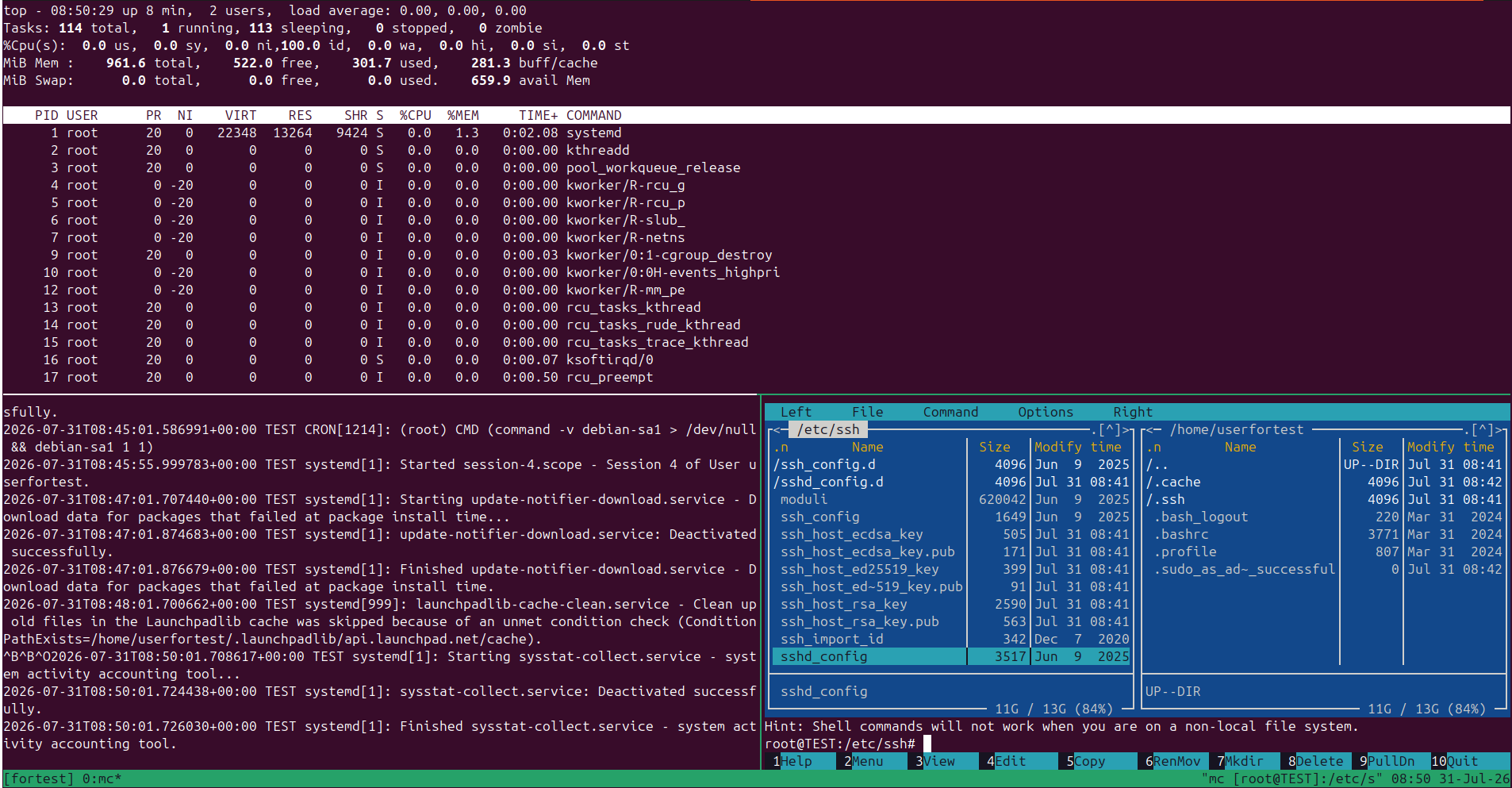
This approach quickly replaces several separate SSH connections and makes working with the server significantly more convenient.
Keyboard Shortcuts
All keyboard shortcuts in tmux begin with a so-called prefix, which is the key combination:
Ctrl+B
After that, press the second key.
| Action | Shortcut |
|---|---|
| Create a new window | Ctrl+B, then C |
| Next window | Ctrl+B, then N |
| Previous window | Ctrl+B, then P |
| Split window vertically | Ctrl+B, then % |
| Split window horizontally | Ctrl+B, then " |
| Switch between panes | Ctrl+B, then O |
| Close the current pane | Ctrl+B, then X |
| Detach from the session | Ctrl+B, then D |
Most users only use a few combinations on a daily basis; these are very easy to memorize, and working with tmux becomes convenient, fast, and second nature.
The Difference Between tmux and nohup
We can’t help but mention that there’s a whole range of tools similar to tmux, and among them, nohup is the most frequently mentioned - it’s often compared to tmux, even though their purposes differ slightly.
nohup also allows a process to continue running after the terminal is closed, and if you just need to run a command and forget about it, that’s perfectly sufficient.
However, tmux saves the entire working session, which you can reconnect to, view program output, stop a process, change settings, or resume work from where you left off.
Below, we’ve summarized the main similarities and differences between the most popular tools in a simple table.
| Feature | tmux | screen | nohup |
|---|---|---|---|
| Process continues after disconnect | Yes | Yes | Yes |
| Reattach to the terminal | Yes | Yes | No |
| Multiple windows | Yes | Yes | No |
| Split windows into panes | Yes | Limited | No |
| Interactive session | Yes | Yes | No |
For modern Linux systems, tmux has long been the go-to tool in this category, having proven itself to be a stable and user-friendly product.
Useful Tips and Common Mistakes
After a few days of working with tmux, you’ll usually develop simple habits that make using the tool much more convenient.
First and foremost, give your sessions meaningful names - after all, finding a session named backup or production is much easier than trying to remember what’s hidden behind a nameless session.
It’s also best to create a separate session for each project or server. This keeps your workspace organized and makes it easier to switch between tasks.
And when you’re done working, be sure to delete sessions you no longer need. This will help you stay organized and find active projects more quickly.
Beginners most often make a few common mistakes:
- running long-running processes outside of tmux;
- creating a large number of unnamed sessions;
- accidentally terminating a session instead of disconnecting;
- using
tmux kill-serverwhen you only need to delete a single session; - expecting sessions to be preserved after a server reboot.
Most of these mistakes are made only once, but after a little practice, working with tmux becomes second nature and almost automatic.
FAQ
Can I close the SSH connection without stopping the program?
Yes. To do this, simply disconnect from the session by pressing Ctrl+B, then D. After that, you can close the terminal, disconnect from the server, or even shut down your computer. All processes running inside tmux will continue to run.
What happens if the internet connection drops or the laptop goes into sleep mode?
Nothing critical will happen. The SSH connection will be terminated, but the tmux session itself will continue running on the server. After reconnecting, simply run tmux attach to resume working from where you left off.
Can I run multiple tmux sessions at the same time?
Yes. In fact, that’s how people usually work. For example, you can use one session for backups, another for deploying an application, and a third for monitoring the server.
Can I connect to the same tmux session from different computers?
Yes. If you connect to the same session from multiple devices, the same terminal will be displayed on all of them. This is convenient when you need to continue working from another computer or co-administer a server.
Will the session persist after a server reboot?
No. tmux does not survive an operating system reboot. After restarting the server, you’ll need to create a new session and, if necessary, restart the relevant processes.
Can I use tmux through PuTTY?
Yes. tmux runs on the server side and is independent of the SSH client. PuTTY, OpenSSH, Windows Terminal, MobaXterm, Termius, and any other programs will work.
How is tmux different from screen?
Both tools allow you to run processes in separate terminal sessions and return to them later. However, tmux offers more convenient window and panel management, flexible configuration, and is actively being developed, which is why it’s more commonly recommended for new projects today.
Conclusion
tmux is one of those tools that quickly becomes an integral part of your daily work with Linux servers. It eliminates the worry of accidental SSH connection drops, helps organize your workspace, and saves you from having to restart long-running tasks.
If you regularly work with VPS, administer servers, deploy Docker applications, transfer data, or simply run commands that take hours to complete, tmux is the first tool you should learn. It takes very little time to learn the basics, and you’ll likely use them every day.