


A database server failure is arguably the most serious failure that can occur in any IT system, as it can bring an entire project to a halt. While the application itself can sometimes be restored in a matter of minutes, the situation is much more complicated when it comes to the database, since up-to-date data is required, and the most recent backup may have been taken several hours ago.
One of the best ways to reduce downtime is to replicate the database between two servers, and in this article, we’ll explore this topic using the PostgreSQL DBMS and two VPS servers as an example. The primary server will process application requests, while the backup server will continuously receive database changes from the primary server. And in the event that if the primary VPS fails, the backup can be switched to active mode.
In this guide, let’s set up PostgreSQL 16 physical streaming replication on two VPS servers, running on Ubuntu 24.04, after which we’ll verify data transfer, analyze common errors, and prepare for a manual switchover to the standby VPS.
Unlike our other articles, this one will include minimal commentary and a maximum of hands-on steps. Let’s get started.
How PostgreSQL Replication Works
To transmit changes, PostgreSQL uses what’s known as a write-ahead log (WAL). When an application adds or modifies data, information about the operation is written to the WAL. The standby server receives these records and applies the changes.
This mechanism is called Streaming Replication.
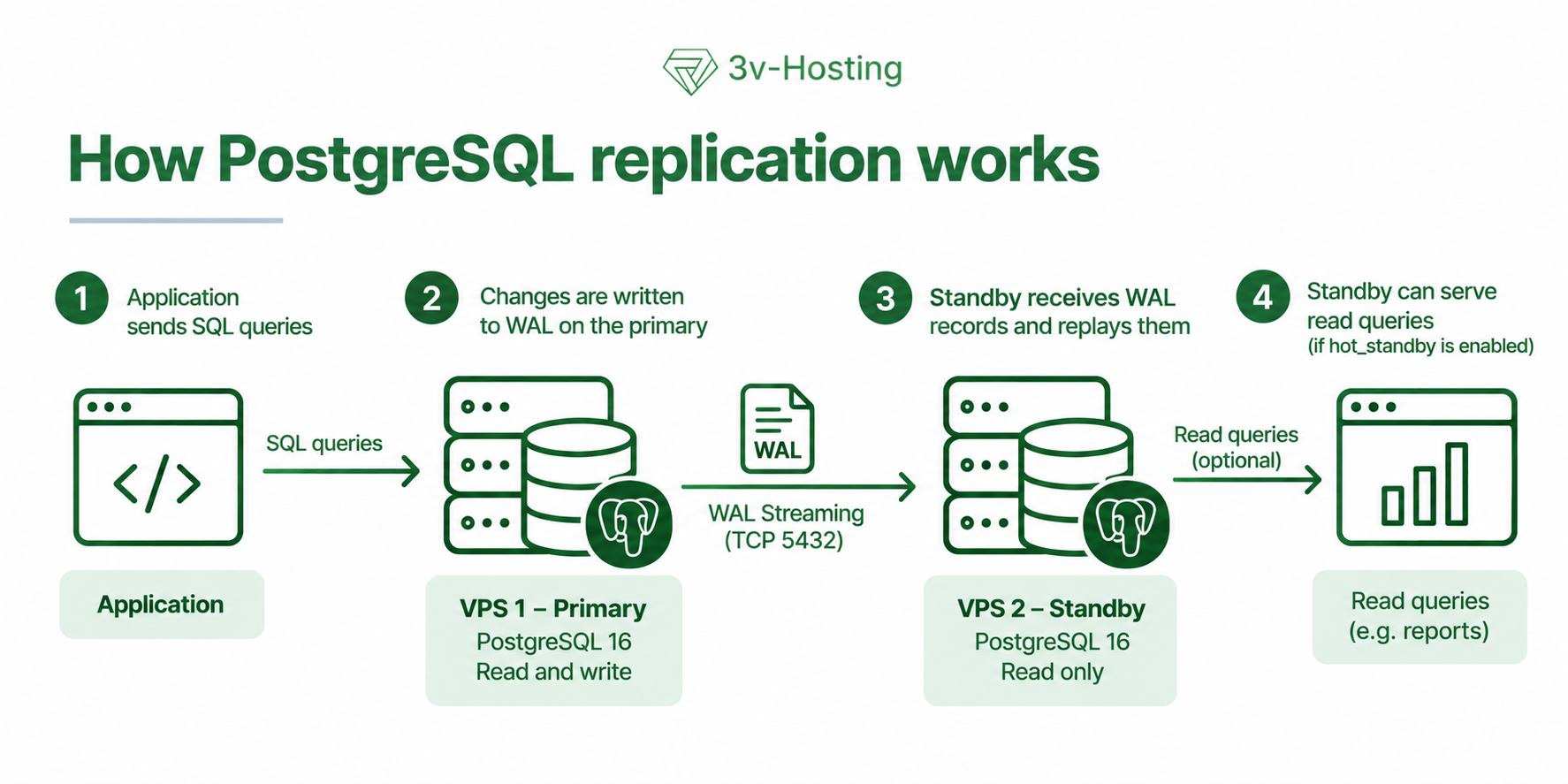
The Primary server handles read and write requests, while the Standby server receives WAL entries and applies them to its copy of the database.
If the hot_standby parameter is enabled (in PostgreSQL 16, it is set to on by default), the standby server can handle read queries. For example, report generation can be offloaded to it, although long-running queries can sometimes interfere with the timely application of the WAL.
There is also a limitation. Deleting a table, a faulty UPDATE, or data corruption at the logical level may be replicated to the standby server. Therefore, separate backups are required for error recovery, preferably with support for Point-in-Time Recovery (PITR).
Setting Up Two VPSs
For this example, we’ll use the following server configuration:
|
Parameter |
Primary VPS |
Standby VPS |
|---|---|---|
|
IP address |
10.10.0.11 |
10.10.0.12 |
|
Operating system |
Ubuntu 24.04 |
Ubuntu 24.04 |
|
PostgreSQL version |
16 |
16 |
|
Role |
Primary server |
Replica |
|
Operating mode |
Read and write |
Read-only |
|
PostgreSQL port |
5432 |
|
The IP addresses listed here are fictitious, but we assume that both VPS instances are connected to the same private network. It is highly recommended to host the servers on different physical nodes; otherwise, a failure of a single hypervisor could simultaneously take both the Primary and Standby servers offline. We believe everything is clear at this point.
Installing PostgreSQL 16
On both servers, run the following commands:
sudo apt update
sudo apt install postgresql-16 postgresql-client-16
Check the version:
psql --version
Expected result:
psql (PostgreSQL) 16.x
On Ubuntu, the PostgreSQL database is managed via postgresql-common. The pg_lsclusters utility displays specific clusters, their ports, and data directories. Therefore, we can now check the cluster status using the command:
sudo pg_lsclusters
Sample output:
Ver Cluster Port Status Owner    Data directory
16  main    5432 online postgres /var/lib/postgresql/16/main
For physical replication, both servers must use the same major version of PostgreSQL. In our case, this is version 16. Minor versions, of course, may differ, although it is still best to update both instances in a timely manner.
Primary Configuration
Let’s start the configuration on the primary VPS server with the IP address 10.10.0.11.
Modifying postgresql.conf
Open the configuration file:
sudo nano /etc/postgresql/16/main/postgresql.conf
Find the parameters and set the values as shown below:
listen_addresses = ‘10.10.0.11,localhost’
wal_level = replica
max_wal_senders = 10
max_replication_slots = 10
wal_keep_size = 1024MB
Here’s a brief explanation of what these settings mean:
|
Parameter |
Description |
|---|---|
|
|
IP addresses on which PostgreSQL accepts connections |
|
|
WAL level required for physical replication |
|
|
Maximum number of WAL sender processes |
|
|
Maximum number of replication slots |
|
|
Minimum amount of old WAL data retained in |
wal_keep_size = 1024MB sets the minimum WAL buffer to approximately 1 GB. This value is suitable for this example, but under heavy write load, this buffer may run out quickly.
This parameter itself does not limit the maximum size of the pg_wal directory.
IMPORTANT! In this article, we are only providing a configuration example; the actual parameter values for your system will depend on many factors, including server load, database load, server performance, and so on.
Creating a User for Replication
Let’s create a separate role through which the Standby will connect to the Primary.
sudo -u postgres psql
In the PostgreSQL console, run the following query:
CREATE ROLE replicator
WITH REPLICATION LOGIN
PASSWORD ‘StrongReplicationPassword’;
IMPORTANT! Replace the password with your own.
The replicator roleis granted replication privileges without superuser privileges.
Verify:
\du replicator
Exit:
\q
Configuring pg_hba.conf
Now let’s allow connections to our primary server from the standby VPS. Open the file:
sudo nano /etc/postgresql/16/main/pg_hba.conf
Add the following:
host replication replicator 10.10.0.12/32 scram-sha-256
This rule allows physical replication for the user replicator from the address 10.10.0.12. And since the rules in pg_hba.conf are checked from top to bottom, make sure that earlier entries do not block this connection.
Restart PostgreSQL:
sudo pg_ctlcluster 16 main restart
Verify that the cluster is running:
sudo pg_lsclusters
Opening Port 5432
If the Primary server uses the UFW firewall, we need to allow connections from the second VPS:
sudo ufw allow from 10.10.0.12 to any port 5432 proto tcp
Check the rules:
sudo ufw status
Obviously, we shouldn’t open port 5432 to all addresses - that’s insecure.
After adding the rule, on the Standby - the second, backup VPS - check the TCP connection to the primary server:
nc -vz -w 3 10.10.0.11 5432
If ncis not installed on the server by default, install it with the following command:
sudo apt install netcat-openbsd
If the connection is successful, a message similar to the following will appear:
Connection to 10.10.0.11 5432 port [tcp/postgresql] succeeded!
This only confirms the availability of a specific port; we’ll perform the authentication check when creating the replica.
Creating the Standby on the Second VPS
Now let’s configure the server 10.10.0.12.
To obtain an initial copy of the database, we’ll use the pg_basebackup utility. It will copy the PostgreSQL files from the Primary and prepare the data for subsequent WAL replay.
Warning! The following commands are intended for a new Standby server with no valuable data. The existing PostgreSQL cluster on the second VPS will be deleted.
Preparing the Data Directory
First, check the cluster status:
sudo pg_lsclusters
Stop the default cluster:
sudo pg_ctlcluster 16 main stop
Delete it:
sudo pg_dropcluster --stop 16 main
In Ubuntu, this command deletes both the data directory and the cluster configuration. Therefore, let’s create a new empty cluster with manual startup mode:
sudo pg_createcluster 16 main --start-conf=manual
Clear the contents of the data directory (without deleting the folder itself) to prepare it to receive a copy from the Primary:
sudo rm -rf /var/lib/postgresql/16/main/*
All configuration files will remain in /etc/postgresql/16/main/, and the postgres user will retain the correct permissions on the target directory.
Copying the database using pg_basebackup
So, on the Standby node, run the following command:
sudo -u postgres pg_basebackup \
  -h 10.10.0.11 \
  -p 5432 \
  -U replicator \
  -D /var/lib/postgresql/16/main \
  -Fp -Xs -P -R
The utility will prompt for the replicator password, which we entered when creating the user.
Here is a brief description of the parameters for this command:
|
Parameter |
Description |
|---|---|
|
|
Primary server address |
|
|
PostgreSQL port |
|
|
Replication user |
|
|
Destination directory for the base backup |
|
|
Plain output format |
|
|
Streams the required WAL records |
|
|
Displays backup progress |
|
|
Automatically prepares the Standby configuration |
The duration of the copy depends on the database size and the connection speed between your VPSs.
The -R parameter automatically creates the standby.signal file and saves the connection settings to the primary server in postgresql.auto. conf. However, the password we entered when running pg_basebackup is not saved in the configuration.
To allow the standby PostgreSQL instance to connect to the primary server automatically after startup or a server restart, you must save the replicator user’s password in a special .pgpass file, which we will configure in the next step.
Configuring the Replication Password
On the Standby server, create the .pgpass file in the home directory of the postgres system user (in Ubuntu 24.04, this is /var/lib/postgresql):
sudo -u postgres nano /var/lib/postgresql/.pgpass
Add the following line to it:
10.10.0.11:5432:*: replicator:StrongReplicationPassword
This should be the password we set for the replicator role on the Primary. The * character in the database field allows these credentials to be used for any connection (including replication service connections). Save the file and close it.
Set the owner and permissions for the created file:
sudo chown postgres:postgres /var/lib/postgresql/.pgpass
sudo chmod 600 /var/lib/postgresql/.pgpass
IMPORTANT! If the file is accessible to other users, PostgreSQL may ignore it.
Check the connection parameters:
sudo grep primary_conninfo \
  /var/lib/postgresql/16/main/postgresql.auto.conf
The output should include a line with the Primary address and the user replicator. Additionally, the pg_basebackup utility may add other parameters to it later.
Starting the Standby
Check for the file:
sudo ls -l /var/lib/postgresql/16/main/standby.signal
Then set the directory permissions:
sudo chown -R postgres:postgres /var/lib/postgresql/16/main
sudo chmod 700 /var/lib/postgresql/16/main
Since the new cluster was created with manual startup mode, let’s change it to automatic:
echo auto | sudo tee /etc/postgresql/16/main/start.conf
Now let’s start PostgreSQL:
sudo pg_ctlcluster 16 main start
Check the status:
sudo pg_lsclusters
If the startup failed, check the log:
sudo tail -n 50 /var/log/postgresql/postgresql-16-main.log
Once the connection is established, the Standby server will begin receiving WAL from the Primary. That’s essentially all the configuration. However, it’s highly recommended that we now verify that the entire system is functioning correctly.
Verifying PostgreSQL Replication
First, let’s check the connection between the servers and the actual data transfer.
Replication Status on the Primary
On the primary VPS, run the following:
sudo -u postgres psql -c \
"SELECT client_addr, state, sync_state
 FROM pg_stat_replication;"
Sample output:
 client_addr |   state   | sync_state
-------------+-----------+--------- ---
 10.10.0.12  | streaming | async
The value streaming means that PostgreSQL is sending the WAL to the standby server. The entry async indicates that asynchronous replication is being used - which is exactly what we need.
If the query returns an empty result, it means the standby server is currently not connected, in which case you’ll need to check all steps from the beginning.
Status on the Standby Server
On the standby VPS, run:
sudo -u postgres psql -c \
"SELECT pg_is_in_recovery();"
Expected result:
 pg_is_in_recovery
------ -------------
 t
The value of t confirms that PostgreSQL is running in recovery mode.
Check the WAL reception process:
sudo -u postgres psql -c \
"SELECT status, sender_host, sender_port
 FROM pg_stat_wal_receiver;"
Example:
  status   | sender_host | sender_port
---------- -+-------------+-------------
 streaming | 10.10.0.11  | 5432
Data Transfer Test
Now let’s check the data transfer between the servers directly. To do this, create a test database on the Primary:
sudo -u postgres createdb replication_test
Create a table in this database:
sudo -u postgres psql -d replication_test -c \
"CREATE TABLE replication_check (
    id SERIAL PRIMARY KEY,
    message TEXT NOT NULL
);"
And let’s add a row to the table:
sudo -u postgres psql -d replication_test -c \
"INSERT INTO replication_check (message)
 VALUES (‘Replication is working’);"
Now, on the Standby server, run the following query:
sudo -u postgres psql -d replication_test -c \
"SELECT * FROM replication_check;"
We expect to see the same record that we inserted on the primary server:
 id |        message
----+------------------------  1 | Replication is working
If the data appears on the standby server, the test was successful.
Let’s try making a record directly on the standby server:
sudo -u postgres psql -d replication_test -c \
"INSERT INTO replication_check (message)
 VALUES (‘Write test’);"
In this case, PostgreSQL should return an error:
ERROR: cannot execute INSERT in a read-only transaction
This is to be expected as long as the server is operating as a standby, which means data cannot be modified on it.
After the test, we drop the database on the Primary:
sudo -u postgres dropdb replication_test
The drop will automatically propagate to the replica.
Asynchronous and Synchronous PostgreSQL Replication
In our configuration example, we’re using asynchronous replication, where the Primary commits transactions without waiting for a response from the Standby. This significantly reduces write latency, but in the event of a sudden failure of the primary server, the latest changes may be lost.
For example, an application saved an order, PostgreSQL committed the transaction, and a moment later the VPS went offline. In such a case, if the WAL has not yet reached the Standby server, the new order may not appear in that server’s database after switching to the standby server.
To mitigate such risks, synchronous replication is available, which allows the system to wait for a specific acknowledgment from the standby server before committing the transaction. A simple comparison of these two methods is provided in the table below.
|
Criterion |
Asynchronous |
Synchronous |
|---|---|---|
|
Transaction confirmation |
Does not wait for Standby |
Waits for the configured acknowledgment level |
|
Write latency |
Usually lower |
Depends on network latency and acknowledgment mode |
|
Risk of losing recent transactions if Primary fails |
Possible |
Depends on configuration and failure scenario |
|
Standby unavailability |
Primary continues operating |
May block transaction commits |
|
Typical use cases |
Websites, SaaS, web applications |
Systems with strict transaction durability requirements |
The behavior of synchronous replication in PostgreSQL can be configured using the synchronous_commit parameter. It determines at what stage of transferring changes to the standby server a transaction will be considered complete.
To configure synchronous replication, you must first specify the application name (application_name) on the standby server. To do this, open the connection configuration file on the standby server:
sudo nano /var/lib/postgresql/16/main/postgresql.auto.conf
In the `primary_conninfo` parameter, add `application_name=standby1`:
primary_conninfo = ‘host=10.10.0.11 port=5432 user=replicator application_name=standby1’
Then reload the configuration on the Standby server:
sudo pg_ctlcluster 16 main reload
Now, on the Primary server, open the configuration file:
sudo nano /etc/postgresql/16/main/postgresql.conf
Add or modify the following settings:
synchronous_standby_names = ‘FIRST 1 (standby1)’
synchronous_commit = on
Here, standby1 is the name of the standby server, which must be specified in the application_name parameter of the Standby’s connection to the Primary. Without configuring this name, PostgreSQL will not be able to identify the correct synchronous replica.
The synchronous_commit parameter supports several modes:
|
Value |
PostgreSQL behavior |
|---|---|
|
|
Primary waits for confirmation that Standby has written WAL to the file system, but not necessarily flushed it to disk |
|
|
Primary waits for confirmation that Standby has flushed WAL to durable storage |
|
|
Primary waits until Standby has applied the changes and they become visible to read queries |
For example, if you set:
synchronous_commit = remote_apply
, PostgreSQL will confirm transaction completion to the application only after the Standby has received and applied the corresponding WAL records.
After making changes to the postgresql.conf file, reload the cluster configuration using the command:
sudo pg_ctlcluster 16 main reload
Important! The synchronous_commit parameter does not enable synchronous replication on its own. To do this, you must also configure synchronous_standby_names to point to the Primary and the corresponding application_name on the Standby.
If the required synchronous replica becomes unavailable, transactions that require its confirmation may wait indefinitely. This is precisely why, for small projects with two VPS instances, asynchronous replication is often chosen; in this case, the primary server continues to accept records even if the Standby is temporarily unavailable.
How to Check for Replica Lag
Sometimes, a running replica may gradually fall behind the Primary. Possible causes include, for example, disk overload, a slow network connection, or high write intensity.
To check for lag, run the following query on the Primary server:
sudo -u postgres psql -c "
SELECT
    client_addr,
    state,
    pg_size_pretty(
        pg_wal_lsn_diff(
            pg_current_wal_lsn(),
            replay_lsn
        )
    ) AS replication_lag
FROM pg_stat_replication;"
Example output:
 client_addr |   state   | replication_lag
-------------+-----------+-----------------
 10.10.0.12  | streaming | 128 kB
This query shows the difference between the current WAL position on the Primary and the last known replay position on the Standby. A small lag during active writing is normal. However, if the difference keeps increasing, you should check the network and the performance of the standby VPS. Keep in mind, though, that PostgreSQL does not have a universal standard for replication lag. Therefore, a value of 10 MB might be perfectly normal for a heavily loaded database but at the same time cause for concern for a small website that generates only a few megabytes of WAL per minute.
Replication Slots as Protection Against WAL Loss
Let’s imagine a scenario where the standby VPS, for one reason or another, went offline for a day. The primary continued to run the entire time and kept creating WAL segments - so many, in fact, that some of the older logs had already been deleted during that period.
Upon coming back online, the standby might discover that the necessary WAL segments are no longer available, and it will then be unable to continue replication without restoring the missing logs.
It is for such cases that PostgreSQL implements support for replication slots. A slot informs the primary which WAL segments are still needed by a specific replica and helps retain them until the replica receives them.
Let’s create a slot.
Creating a Physical Slot
On the Primary, run the following query:
sudo -u postgres psql -c \
"SELECT pg_create_physical_replication_slot(‘standby_vps’);"
On the Standby, add the following parameter to the PostgreSQL configuration:
sudo nano /etc/postgresql/16/main/postgresql.conf
primary_slot_name = 'standby_vps'
Restart the Standby server with the command:
sudo pg_ctlcluster 16 main restart
After that, on the Primary server, check:
sudo -u postgres psql -c "
SELECT    slot_name,
    slot_type,
    active,
    restart_lsn
FROM pg_replication_slots;"
If the slot is in use, the active parameterwill have the value t.
It’s important to understand that a slot created without immediate WAL reservation begins to retain the necessary segments only after it starts being used. In other words, it will not be able to recover previously deleted logs.
WAL Size Limit
However, Replication Slots also have a downside. For example, if the Standby is unavailable for a long time, the Primary may retain WAL until the disk is full. To mitigate this risk, in the postgresql.conf file of the primary server, you can set the following parameter:
max_slot_wal_keep_size = 10GB
Of course, this is just an example value that should be adjusted for the specific workload.
When the volume of retained WAL exceeds the set limit, PostgreSQL may delete segments required for replication at the next checkpoint. However, after that, the Standby server sometimes has to be recreated.
Therefore, Replication Slots require monitoring of available disk space, and for more complex infrastructures, it is advisable to implement WAL archiving and balance the risks of data loss against server configuration.
Switching to a Standby VPS in the Event of a Primary Failure
Now let’s consider a situation where the primary server has failed. In this case, the Standby can be promoted to Primary; in PostgreSQL, this operation is called Promotion.
IMPORTANT! Before switching, you must ensure that the former Primary is no longer accepting write operations, because if both servers begin to serve applications independently, a Split-Brain scenario will occur: the databases will diverge, and PostgreSQL will not automatically merge the changes.
Promoting a Standby to Primary
On the standby VPS, run the following query:
sudo -u postgres psql -c \
"SELECT pg_promote();"
Expected result:
 pg_promote
-------- ----
 t
This means the promotion request was accepted.
When pg_promote() is called PostgreSQL automatically deletes the standby.signal file from the data directory and exits recovery mode.
Verify that the operation is complete using the following query:
sudo -u postgres psql -c \
"SELECT pg_is_in_recovery();"
The result should change to:
 pg_is_in_recovery
-------------------
 f
The server is now running as a standalone Primary and can accept write operations, but the application is still using the old database address. Therefore, we need to redirect new connections to the current server.
Redirecting Connections
To connect the application to the new Primary, you can change the connection string in the application’s configuration, update the DNS record, or use a pre-configured proxy. We’ve compiled the most popular redirection options into a handy table:
|
Method |
Features |
|---|---|
|
Changing application configuration |
Simple, but may require restarting the application |
|
DNS |
Depends on DNS caching and may take some time |
|
HAProxy |
Single connection endpoint with server role verification |
|
Virtual IP |
Requires suitable network infrastructure |
|
Patroni |
Enables automated cluster management |
For our scenario with two small VPS instances, manual failover is perfectly adequate if the project can tolerate a few minutes of downtime. If the primary server fails, the administrator checks the status of the standby server, promotes it to the primary server, and redirects the application’s connections.
Automatic failover is more complex because the system must distinguish between an actual server failure and a temporary loss of network connectivity. For example, a tool like Patroni uses etcd or Consul to coordinate server roles. For reliable operation, a quorum of three participants is usually required, where decisions are made by majority vote. Additionally, protection against split-brain is necessary to prevent two servers from simultaneously accepting writes. But that takes us into more technical territory and is beyond the scope of this article.
Restoring the Old Primary
After restoring the old VPS, you cannot simply power it on and reconnect it to replication, since the new Primary may already have its own WAL history.
To restore the old server, you can use the pg_rewind utility. It allows you to synchronize out-of-sync clusters if the necessary conditions are met: data checksums are enabled or wal_log_hints has been configured in advance, the required WAL files are available, and the server state requirements are met.
If using pg_rewind is not possible, it’s easier to recreate the old Primary as a Standby using pg_basebackup.
Common Replication Errors in PostgreSQL
Now let’s quickly go over the main issues you might encounter when setting up replication. Most of these issues are detected either during the initial connection or after the Standby has been offline for an extended period.
To check for them, first examine the log:
sudo tail -n 100 /var/log/postgresql/postgresql-16-main.log
Or check the systemd logs:
sudo journalctl -u postgresql@16-main -n 100 --no-pager
Common Errors and Possible Causes
|
Error |
Cause |
What to check |
|---|---|---|
|
|
PostgreSQL is not listening on the address or port |
|
|
|
No network connectivity |
Firewall, routing, VPN |
|
|
Connection is not allowed |
|
|
|
Incorrect password |
|
|
|
Required WAL segment has been removed |
WAL archive, Replication Slots |
|
|
Incompatible clusters |
Source of the base backup |
|
|
Disk space exhausted |
|
Error: no pg_hba.conf entry
If PostgreSQL reports:
FATAL: no pg_hba.conf entry for replication connection
On the Primary, check the rule:
host replication replicator 10.10.0.12/32 scram-sha-256
After making the correction, reload the configuration:
sudo pg_ctlcluster 16 main reload
If using NAT or a VPN, the actual connection address may differ from the one specified in the settings.
"Password authentication failed" error
Message:
FATAL: password authentication failed for user ‘replicator’
usually indicates an incorrect password.
On the Primary, you can set a new one:
sudo -u postgres psql -c \
"ALTER ROLE replicator PASSWORD ‘NewStrongReplicationPassword’;"
Then update .pgpass on the Standby:
sudo -u postgres nano /var/lib/postgresql/.pgpass
Check the permissions:
sudo stat -c ‘%a %U %G %n’ /var/lib/postgresql/.pgpass
Expected permissions are 600, owner is postgres.
Error: "requested WAL segment has already been removed"
Message:
ERROR: requested WAL segment has already been removed
appears when the Standby requests a WAL segment that no longer exists on the Primary.
If the required segments are available in the WAL archive and their recovery is configured, the replica can continue operating.
If the logs are no longer available anywhere, you will usually need to recreate the Standby using pg_basebackup.
PostgreSQL is running, but replication is not working
Check the file:
sudo ls -l /var/lib/postgresql/16/main/standby.signal
Then check the connection parameters:
sudo grep primary_conninfo \ /var/lib/postgresql/16/main/postgresql.auto.conf
And the status of the WAL Receiver:
sudo -u postgres psql -c \
"SELECT status, sender_host
 FROM pg_stat_wal_receiver;"
If the server is in recovery mode but the WAL Receiver is not connected, the cause can usually be found in the PostgreSQL log.
How to Keep PostgreSQL Replication Up and Running
After setting up replication, it’s important to ensure that it continues to function properly. After all, successful synchronization on the first run does not guarantee that the standby server will be ready to take over the load in the event of a failure a month from now.
For day-to-day monitoring, Prometheus with postgres_exporter and Grafana - or your existing monitoring system - will suffice. First and foremost, you should monitor the availability of both VPS instances, the status of the WAL Receiver, replication lag, free disk space, and PostgreSQL errors. If you’re using Replication Slots, you should also monitor the amount of WAL being retained.
Acceptable monitoring thresholds depend on the requirements of the specific project, and it’s helpful to focus on two metrics here: RPO (Recovery Point Objective) - the acceptable period of data loss - and RTO (Recovery Time Objective) - the maximum time required to restore the service - which we’ve already discussed in recent articles. For example, for an informational website, a replication delay of a few seconds may be perfectly acceptable, whereas for a payment system, the requirements will be much stricter.
In addition to monitoring, it’s worth periodically testing the failover procedure itself. To do this, you can use a separate test environment where a primary server failure is simulated, the standby server is promoted, and the application’s connection to the new primary database is verified.
Such tests are particularly important for asynchronous replication, where there is a risk of losing the most recent transactions. It’s also important not to overlook other potential issues, such as the deletion of necessary WAL files after a prolonged shutdown of the standby server and the occurrence of a split-brain scenario due to an incorrect failover.
For a small project involving two VPS instances with PostgreSQL Streaming Replication and manual failover, this is usually sufficient, provided that only brief downtime is acceptable. However, as the load and availability requirements grow, this setup can be supplemented with automatic failover and a more advanced monitoring system.
In any case, replication must be accompanied by full backups. Its main purpose is to maintain a ready-to-run database instance on a second server so that, in the event of a failure on the primary VPS, the application can be restored with minimal loss of time and data.
Frequently Asked Questions
Is it possible to set up replication between PostgreSQL 16 and PostgreSQL 17?
Physical streaming replication requires the same major version of PostgreSQL. Thus, servers running PostgreSQL 16.4 and 16.8 can operate within the same replication configuration.
However, it is unfortunately not possible to directly connect PostgreSQL 17 as a physical replica of PostgreSQL 16. Nevertheless, you can consider logical replication for data exchange between different major versions.
Can SQL queries be executed on the standby server?
Yes, if hot_standby is enabled. However, only read queries are allowed on the standby server. Operations such as INSERT, UPDATE, and DELETE are prohibited, since long-running queries on the standby server may conflict with WAL application; therefore, the load on the replica must be monitored.
What happens if the connection between VPSs is lost?
With asynchronous replication, the Primary will continue to operate, while the Standby will stop receiving new WAL entries. However, once the connection is restored, PostgreSQL will attempt to resume synchronization. This will only work, however, if the necessary WAL segments are still available.
Can two VPS instances be used for automatic failover?
Yes, but additional infrastructure is required to make failover decisions and prevent split-brain. Streaming Replication alone does not provide automatic failover.
Does replication replace backups?
No, since erroneous changes could end up on both servers.
It’s better to use dedicated backup tools for this purpose.