To fix any error, we first need to understand the nature of the problem and identify its causes. Specifically, the DNS_PROBE_FINISHED_NXDOMAIN error appears in the browser window when the browser cannot resolve a website’s IP address from its domain name, resulting in the webpage failing to load - even though your internet connection may be working fine on your device.
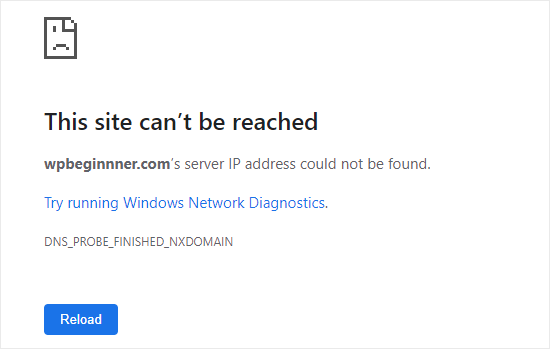
This message is most commonly encountered in Google Chrome, Microsoft Edge, and other Chromium-based browsers. However, there can be several causes, ranging from a simple error in your computer’s settings to an issue with your ISP’s DNS server or the domain’s configuration.
In this article, we’ll briefly explain how to identify the source of the error and restore access to the website.
How to Quickly Fix DNS_PROBE_FINISHED_NXDOMAIN
First, let’s briefly go over the main causes of the DNS_PROBE_FINISHED_NXDOMAIN error and ways to resolve it. This will help you quickly restore access to the website if the problem doesn’t require complex troubleshooting. We’ll go over each method in a bit more detail below. The order in which you perform these checks depends on the symptoms of the problem. For example, if the error occurs on only one device, you should obviously start by checking your device’s local settings. If, however, multiple independent DNS servers are returning the NXDOMAIN error, you’ll need to check the domain’s configuration.
- Check the website address. Make sure there are no typos or extra characters in the domain name.
- Try a different network. Open the website on your smartphone using mobile data. If it works, the problem may lie in your computer’s settings, your router, or your ISP’s DNS server settings.
- Clear the DNS cache. In Windows, run the command
ipconfig /flushdnsin the console, and in Linux, using thesystemd-resolvedservice, enter the commandsudo resolvectl flush-caches. - Check the public DNS. To do this, run the following command in the console:
nslookup example.com 8.8.8.8, replacingexample.comwith the desired domain, and compare the result with the response from the default DNS server configured on your system. - Check your browser settings. For example, in Chrome, you can try clearing the internal DNS cache via
chrome://net-internals/#dnsand check the Secure DNS settings. - Check the domain’s DNS records. If the site is inaccessible across different networks, the cause may be incorrect delegation or the absence of the required name in the DNS zone.
Now, after this quick overview of possible solutions to this specific error, let’s take a closer and more systematic look at all aspects of the problem described.
What Does DNS_PROBE_FINISHED_NXDOMAIN Mean?
When a user opens a website, their computer queries the DNS (Domain Name System) to obtain the server’s IP address. For example, for the domain example.com the DNS resolver searches for the corresponding record and returns the address, which the browser then uses to establish a connection.
If the DNS server reports that the requested name does not exist, it returns the code NXDOMAIN (Non-Existent Domain), which is where the error name comes from.
However, the domain may very well exist; it’s just that sometimes the resolver may be caching an outdated negative response, or your ISP may be filtering DNS queries. Or perhaps your browser is using a different DNS server.
When it comes to DNS servers, there’s another nuance to consider. The absence of an A record doesn’t always mean the browser will receive an NXDOMAIN message. For example, a domain might have only an IPv6 address (AAAA record), and in that case, the DNS server can return the NOERROR code, even if there is no IPv4 address.
Why Does This Error Occur?
There are several common causes for the DNS_PROBE_FINISHED_NXDOMAIN error: And as we mentioned above, first we need to figure out exactly where the error is occurring - that is, to pinpoint it. Let’s start by checking the availability of the website itself.
- An error in the address - for example, a typo, an extra character, or a nonexistent subdomain;
- An outdated DNS cache - in which case the computer, browser, or resolver continues to store the negative response even after the DNS records have been corrected;
- Issues on the DNS server side - when the provider’s resolver returns incorrect or outdated data;
- Incorrect domain configuration - such as delegation errors, missing records, or issues with authoritative DNS servers;
- VPNs and network filters - such as antivirus software, ad blockers, and corporate DNS servers, which sometimes alter responses to queries.
Checking Website and DNS Availability
If you see the DNS_PROBE_FINISHED_NXDOMAIN error in your browser window, first try accessing the same problematic website via a different network, a different Wi-Fi connection, or mobile data.
If the website works, this means the problem lies in the settings of your first device. In this case, check the DNS servers for your home network or your computer.
To troubleshoot in Windows, open a command prompt and run the following command:
nslookup example.com
If you’re using Linux, use the digcommand:
dig example.com A
In the dig response, pay attention to the status field. A value of NXDOMAIN means that the DNS server reported that the requested name does not exist.
Now compare the result with Google’s public DNS:
dig @8.8.8.8 example.com A
If one resolver returns NXDOMAIN while another returns an IP address, then the problem may be related to caching or filtering of DNS queries.
How to Interpret DNS Responses
In the table below, we’ve compiled the most common response codes from DNS servers.
|
Result |
Meaning |
|---|---|
|
|
The DNS record was found |
|
|
According to the DNS response, the requested domain name does not exist |
|
|
The domain name exists, but no IPv4 address record is available |
|
|
The DNS server was unable to process the query |
|
|
The DNS server refused to process the query |
|
|
No response was received within the specified time |
So, if there is no A record for the domain, you should check for an IPv6 record:
dig example.com AAAA
In other words, an empty ANSWER section with a NOERROR status does not necessarily indicate a DNS malfunction.
How to Clear the DNS Cache
Both the operating system and the browser itself may temporarily store the results of past DNS queries, including NXDOMAIN. Therefore, even if the domain records have already been corrected, the old response retrieved from the cache may sometimes continue to prevent the website from loading. Therefore, if you encounter any issues, you should manually clear the DNS cache.
To do this, in Windows, open a Command Prompt as an administrator and run the following command:
ipconfig /flushdns
In Linux, with the systemd-resolved service running, run:
sudo resolvectl flush-caches
Afterward, you can check the cache statistics with the command:
resolvectl statistics
Keep in mind that on some Linux systems, the DNS cache is managed by dnsmasq, nscd, or other components. And if local caching isn’t used at all, there will be nothing to clear.
After clearing the cache, repeat the DNS query; if the response remains the same, try a different resolver.
How to Change Your DNS Server
If you’ve determined that the problem is specifically related to the DNS server configured by default on your device, but the requested website opens when using other DNS servers, then simply switch temporarily from your provider’s DNS to one of the public DNS servers. Below are some of the most popular examples of such public servers.
|
DNS Provider |
Primary Address |
Secondary Address |
|---|---|---|
|
Google Public DNS |
|
|
|
Cloudflare |
|
|
To change these settings in Windows, open “Settings” → “Network & Internet”, select your active connection (Wi-Fi or Ethernet), and locate the “DNS server” option. Switch to manual IPv4 configuration and enter Google’s DNS servers: Save the changes.
- Primary:
8.8.8.8 - Alternate:
8.8.4.4
In Linux with NetworkManager, you can change the DNS via the terminal. But first, we need to find out the name of the active connection:
nmcli connection show --active
Then set the Google DNS servers:
sudo nmcli connection modify "Wired connection 1" \
  ipv4.dns “8.8.8.8 8.8.4.4” \
  ipv4.ignore-auto-dns yes
Replace Wired connection 1 with the name of your connection. The settings will be saved and applied after a reboot.
To apply them immediately, run the command:
sudo nmcli device reapply eth0
Here, eth0 is the name of the network interface, which you can find using the command nmcli device status.
In Linux, you can also change DNS servers manually via configuration files. Their location and format depend on the network management system you’re using - for example, NetworkManager, Netplan, or systemd-networkd - but that is beyond the scope of this article.
If the website starts loading after changing the DNS, the problem was likely related to the previous resolver. However, changing the DNS won’t help if the domain name isn’t listed on the authoritative servers.
Checking the hosts File
Modern operating systems have another feature: a file called hosts, which allows you to manually map domain names to IP addresses. The system checks this file even before it checks remote DNS servers. The problem is that this file sometimes contains leftover entries from test servers or old configurations, which can cause issues during normal operation.
File location on different operating systems: For example, the line 192.0.2.10 example.com instructs applications using the system’s name resolution mechanism to resolve to the address 192.0.2.10.
- Windows:
C:\Windows\System32\drivers\etc\hosts - Linux:
/etc/hosts
If this entry in the file is outdated, simply comment out the line with the # symbol.
Typically, an incorrect entry in the hosts file results in a connection to the wrong IP address, rather than a DNS NXDOMAIN response. Therefore, it only makes sense to check this file when the browser and DNS utilities show different results.
Fixing the error in Google Chrome
The Chrome browser may maintain its own DNS cache and use Secure DNS - a mechanism for sending DNS requests over HTTPS.
To clear the browser cache, type the following in the address bar:
chrome://net-internals/#dns
If the Clear host cache button is available in your browser version, click it.
Then go to the security settings by typing the following in the address bar:
chrome://settings/security
In the menu that opens, find the “Use secure DNS” option. If a specific DNS provider is selected there, temporarily switch to the default settings and check whether the desired website opens.
For example, the system resolver might successfully resolve the domain, while the DNS-over-HTTPS server selected in Chrome returns an NXDOMAIN error.
Also, if the error occurs only in Chrome, it’s worth checking extensions related to VPNs, ad blocking, and request filtering.
However, there’s no point in disabling Secure DNS entirely without first determining the cause.
What Should a Website Owner Do?
So far, we’ve looked at the problem from the perspective of an ordinary website user. But what should a website owner or administrator do if their users on different networks are receiving a DNS_PROBE_FINISHED_NXDOMAIN error?
In this case, the administrator should first check the domain registration and DNS zone settings. Start with the registration period, since once it expires, the registrar may suspend the domain, although the specific behavior depends on the domain zone.
Then request the current NS records:
dig example.com NS
However, keep in mind that this command will show the data returned by the current resolver. To check the entire delegation chain, use this command, which will allow you to see at which stage the problem occurs:
dig +trace example.com
If DNS is provided by, for example, Cloudflare or another external platform, then compare the registrar’s NS servers with the servers assigned to the DNS zone.
Finally, check DNSSEC as well. However, a mismatch between DS records and DNSSEC keys usually results in a SERVFAIL, so this type of error is easy to distinguish from a standard NXDOMAIN.
Checking Authoritative DNS Servers
If different DNS servers return conflicting results, you should check the records directly on the domain’s authoritative DNS servers. These servers store the information about the DNS zone, which is then queried by recursive resolvers.
First, determine which NS servers serve your domain:
dig example.com NS
You’ll see their names in the response. Let’s say one of the servers is ns1.example.net. Now let’s query it directly for the domain’s IP address:
dig @ns1.example.net example.com A +norecurse
Here, example.com is the domain being checked, and ns1.example.net is its authoritative DNS server. The +norecurseparameter disables recursive resolution. If the response contains the aa(Authoritative Answer) flag, the server confirms that it is responsible for the corresponding DNS zone.
Next, compare the result with the response from a public DNS server, such as Google:
dig @8.8.8.8 example.com A
There are two main possibilities here: Repeat the check for the remaining authoritative NS servers. Their responses must be consistent; if one server returns an IP address and another returns NXDOMAIN, users may receive different results depending on which server their resolver queries.
- The authoritative server returns the correct IP address, but Google returns an NXDOMAIN code. In this case, a public resolver has likely cached an outdated negative response.
- The authoritative server returns NXDOMAIN. This means that the requested name is not present in the DNS zone it serves. In this case, you need to check the domain configuration and ensure the necessary records are present.
Why a subdomain returns NXDOMAIN
Sometimes the main domain works normally, but one of its subdomains returns an NXDOMAIN error. For example, the website example.com loads, but the control panel at panel.example.com is unavailable.
In this case, first check the DNS record for the problematic subdomain:
dig panel.example.com A
If the response indicates the status NXDOMAIN, then query the same record directly from the authoritative DNS server of the main domain, as we did earlier:
dig @ns1.example.net panel.example.com A +norecurse
Note that here ns1.example.net is a placeholder for the authoritative server’s actual name, which must be replaced with the correct one.
After that, compare the results. If both servers return NXDOMAIN, the subdomain name is likely missing from the DNS zone or specified incorrectly. However, if the subdomain is delegated separately, check the delegation settings.
If the authoritative server returns an IP address but the recursive server returns an NXDOMAIN code, the resolver may have cached an outdated negative response and continues to use it until the TTL expires.
A typical example is migrating the control panel to another server. The administrator deletes the subdomain’s old A record but forgets to create a new one. As a result, the main site continues to load as before, since its DNS records remain unchanged, while the subdomain’s do not.
How Long Does an NXDOMAIN Last?
Even after correcting the DNS records, the NXDOMAIN error may persist for some time. This is because recursive DNS servers cache not only the records they find but also responses indicating that a domain name does not exist. This is called negative DNS caching.
For example, if a DNS server has cached an NXDOMAIN response for one hour, it may continue to return it to users even after the correct record has appeared on the authoritative server.
The cache time for such responses is governed by RFC 2308 and depends on the parameters of the domain’s SOA record. You can view it using the command:
dig example.com SOA
In the response, we’re interested in two values: the TTL of the SOA record itself and the MINIMUM field. According to RFC 2308, the shorter of the two is used for negative caching. Additionally, a recursive resolver may further limit the cache time of responses through its own configuration.
What should you do if the DNS has already been fixed but the error persists?
First, compare the responses from the authoritative DNS server and public resolvers. If the authoritative server is already returning the correct IP address, but the recursive resolver still reports NXDOMAIN, then the issue is most likely related to the cache.
In this case, as we mentioned above, you can temporarily switch to a different DNS server or wait for the TTL to expire. Clearing the local DNS cache sometimes helps as well, but it does not remove cached responses from your ISP’s servers.
In summary, we’ve determined that the DNS_PROBE_FINISHED_NXDOMAIN error occurs during the domain name resolution phase, even before the browser connects to the web server.
To pinpoint the problem, start by checking the website’s address and comparing responses from different DNS servers. If the issue is local, check your browser’s cache and settings. If the error occurs for multiple users, investigate the domain’s delegation and the responses from authoritative servers.
In fact, the NXDOMAIN code allows you to narrow down the possible causes fairly quickly. Therefore, the key here is to determine which DNS server is returning the error and why.
Frequently Asked Questions
Why does DNS_PROBE_FINISHED_NXDOMAIN occur only in Chrome?
The cause may be the browser’s internal DNS cache, Secure DNS settings, or extensions. If other browsers can open the site, start by checking these components.
Can a VPN cause an NXDOMAIN error?
Yes, a VPN may use its own DNS servers and filter requests. Disable the VPN while troubleshooting and compare the results. For corporate domains, the opposite can be true - they may be inaccessible without a VPN.
Why does the website open on my phone but not on my computer?
Devices may use different DNS servers. For example, a smartphone uses your mobile carrier’s resolver, while a computer uses the DNS of your home router.
Will restarting the router help?
Sometimes, if the router is acting as a caching DNS proxy. However, restarting it won’t fix errors in the DNS zone or clear the ISP’s cache.
Can the error resolve on its own?
Yes, if the cause is an outdated negative response. Once the TTL expires, the resolver will repeat the query.